In the expansive Android ecosystem, which powers over three billion devices globally, encountering sudden app closures is a remarkably common grievance. When a pop-up appears declaring that your video application has unexpectedly closed, it abruptly halts your entertainment, educational streaming, or background music playback. This particular error message usually manifests when the system is overwhelmed by conflicting software instructions, prompting the operating system to forcefully terminate the active session to prevent a total device freeze. Understanding the root mechanics of why this occurs is the first critical step toward implementing a permanent resolution for your smartphone.
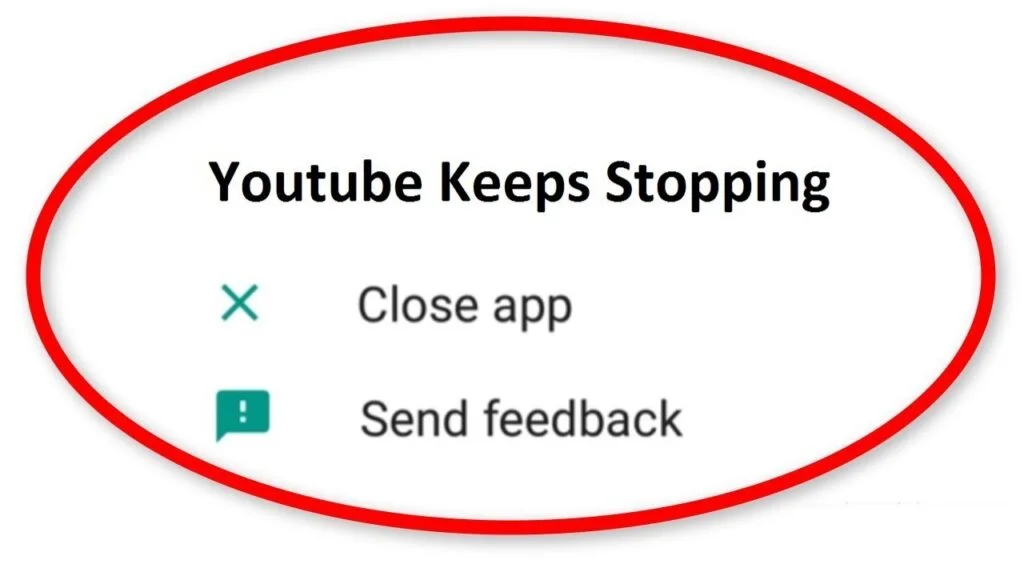
Given the immense scale of the platform, a huge global outage occasionally stems from server-side problems rather than your personal handset. However, research indicates that the vast majority of daily complaints are entirely localized to the user’s specific hardware and software environment. By systematically addressing common storage, memory, and application optimization settings, you can completely eliminate these disruptive crashes and return to seamless high-definition streaming in less than ten minutes.
Understanding the Core Software Triggers
The most prevalent culprit behind these sudden closures is the accumulation of corrupted temporary files. As you scroll through endless feeds of high-resolution video thumbnails and Shorts, the application aggressively saves these visual assets into a hidden cache folder to speed up future loading times. Over several weeks or months, this hidden folder can become bloated or suffer data corruption, forcing the application to misread the files and subsequently crash back to the home screen. Identifying this buildup is crucial when attempting to fix YouTube not working efficiently on standard mobile devices.
Beyond temporary files, conflicts involving the Android System WebView component are another massive trigger. This background service allows applications to display web content seamlessly, but whenever it receives a faulty background update, it frequently causes media-heavy applications to spiral into endless crash loops. Furthermore, aggressive battery optimization protocols built into modern Android versions will forcefully kill background playback processes if the system falsely believes the application is draining too much standby power.
Executing the Initial Troubleshooting Steps
Your immediate response to a sudden app closure should be initiating a manual force stop. You can accomplish this by navigating to your device settings, opening the applications menu, locating the specific streaming app, and tapping the force stop button. This action completely halts all frozen background processes associated with the app, providing a clean slate for the next launch. Following this, you should immediately tap on the storage submenu and clear the application cache, which safely deletes the accumulated temporary files without erasing your downloaded videos or active login credentials.
If the application continues to fail upon relaunching, executing a complete device restart is your next logical maneuver. Powering down the phone entirely clears the temporary Random Access Memory and forces the operating system to reload its core services freshly. Once the phone boots back up, you should open the Google Play Store to verify if any pending updates are available. Developers frequently release server-side patches to address known bugs, meaning applying the latest official fix via an app update often resolves the entire situation instantly.
Advanced Solutions for Persistent Closures
When basic cache clearing fails to yield positive results, you must escalate to more thorough software interventions. Navigating back to the application’s storage settings and selecting the option to clear all data will completely reset the app to its factory state. While this powerful method forces you to sign back into your Google account and removes offline downloads, it is exceptionally effective at obliterating deep-rooted software glitches. If this reset does not stabilize the application, completely uninstalling it from your device and downloading a fresh copy from the Play Store serves as the ultimate software cleanse.
For users experiencing crashes specifically when turning off their screens or switching to other apps, adjusting power management settings is absolutely vital. You must dive into your main battery settings, locate the background optimization menu, and ensure the application is set to an unrestricted power state. This tells the Android operating system to stop throttling the app’s resources when it runs in the background. Many users on technical forums recently celebrated getting their app crashing finally fixed by simply removing these aggressive battery limitations.
Nigeria-Specific Hardware and Network Factors
In regions like Nigeria, the hardware landscape is heavily dominated by budget-friendly brands such as Tecno, Infinix, and Itel, which often ship with limited processing power and aggressive memory management. When a heavy video application attempts to load complex algorithms on a device with minimal free RAM, the operating system will forcefully terminate the app to keep the phone responsive. Maintaining at least twenty percent of free internal storage space is a critical best practice to prevent these budget devices from choking during intense streaming sessions.
Additionally, severe network fluctuations commonly experienced on major telecom providers like MTN or Airtel can easily mimic application crashes. When the application attempts to fetch a video ad or load a high-definition stream and suddenly encounters a massive drop in data packets, the software may panic and close unexpectedly. If you suspect your mobile data is the root cause of why YouTube keeps crashing, you should immediately test the application on a stable, high-speed Wi-Fi connection to isolate and confirm the network-related variable.
Frequently Asked Questions (FAQ)
Will clearing the app data delete my channel subscriptions or liked videos?
Clearing the application data will strictly remove locally stored files, such as your offline video downloads and your current login session token. Your channel subscriptions, viewing history, liked videos, and playlists are all safely stored on cloud servers associated with your primary Google account. Once you relaunch the application and sign back in using your email address, all of your personalized data and preferences will instantly sync back to your smartphone.
Why does the app only crash when I try to play music in the background?
Background playback crashes are almost entirely tied to your smartphone’s aggressive battery-saving features. Operating systems like Android 14 and 15 are designed to ruthlessly shut down background tasks to preserve battery life. To prevent your YouTube Music Premium streams or standard background videos from closing, you must navigate to the specific app settings and manually change its battery usage allowance from optimized to unrestricted.
Can outdated Android software cause continuous streaming crashes?
Absolutely, running an outdated version of the Android operating system can severely hinder application stability. Modern streaming apps rely heavily on updated system components, particularly the Android System WebView, to render content accurately. If your underlying operating system is missing crucial security patches or compatibility updates, the application will struggle to communicate with the hardware, inevitably leading to a situation where your YouTube keeps crashing on Android devices completely unprompted.
Should I download an older APK version if the new update keeps stopping?
Rolling back to an older version of the application by uninstalling updates via the Google Play Store is a highly recommended temporary workaround if a brand-new release is fundamentally broken. However, downloading unverified APK files from random third-party websites poses a massive security risk to your device. It is much safer to simply uninstall the recent updates through official system menus and wait a few days for the developers to push a verified, stable patch.
Ensuring Uninterrupted Digital Entertainment
Resolving continuous application closures is fundamentally an exercise in proactive device maintenance rather than purely reacting to sudden software emergencies. By taking a few minutes each month to clear out bloated temporary files, monitor your available internal storage, and ensure your system components are fully updated, you create a significantly more stable environment for all your installed software. Recognizing the intricate relationship between battery optimization protocols and heavy media consumption empowers you to tweak your settings perfectly, permanently eliminating the frustration of dropped video streams.
As mobile software continues to evolve with increasingly complex artificial intelligence recommendations and higher-definition media formats, the demands placed on your smartphone’s processor and memory will only grow steeper. Whether you are troubleshooting a flagship device or a budget handset, applying these systematic diagnostic steps ensures your hardware remains capable of handling future digital advancements. Staying vigilant about your device’s health guarantees that your daily entertainment, educational pursuits, and background music remain consistently smooth and entirely uninterrupted for years to come.
Written by: Kehinde Mosope
Tech & SEO Specialist | Founder of NaijaFix
5+ Years Experience in Mobile Troubleshooting & Consumer Tech
Published: February 27, 2026
Last Updated: February 27, 2026
About the Author: Kehinde Mosope helps Nigerians solve everyday phone, network, and internet problems using real tests and practical solutions, not theories.